

Does OrganizePhotos upload your photos?
Where OrganizePhotos keeps imported photos, which library data stays on your device, and how you can verify the local-first workflow yourself.
After OrganizePhotos launched, one user raised a concern.
Most tools are made as phone or desktop apps. Web code can change at any time, so I am not comfortable with the privacy implications.
Another user described the concern more specifically.
Android, iOS, and Mac apps are reviewed before they are published, and phones let you limit photo access or allow an app to read only selected images.
Phones and PCs can also block an app from using the network.
A photo tool that runs on the web therefore needs to explain clearly how it can show that photos are not being uploaded.
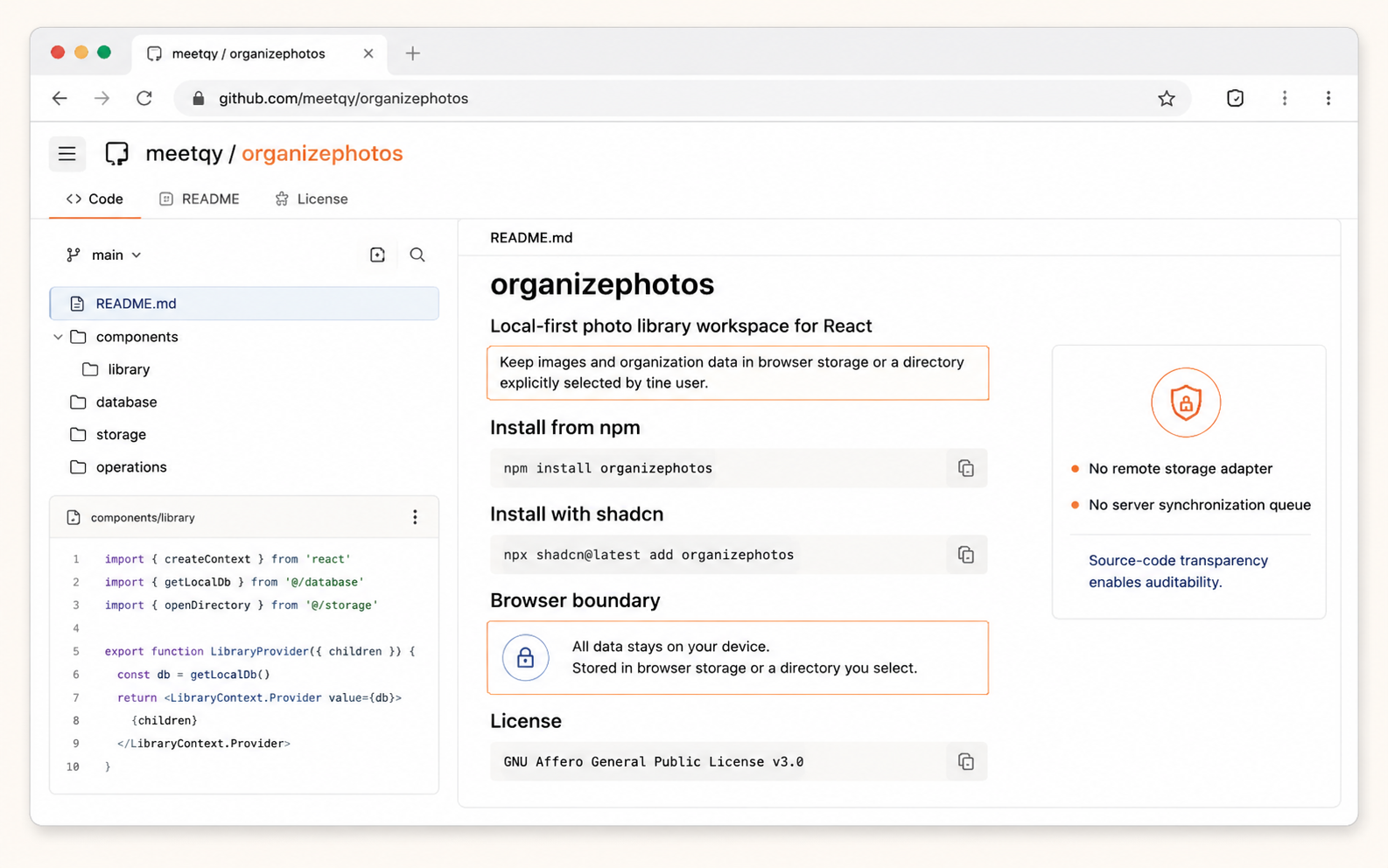
The question is not whether a web app or a native app is automatically safer. It is whether you can know which photos OrganizePhotos can access, where your photos are stored, whether organizing them sends an upload request, and whether you can verify those behaviors yourself. The OrganizePhotos editor is now open source at github.com/meetqy/organizephotos, so you can inspect the code responsible for importing, storing, and organizing photos. This article explains where your photos go, how they are processed, and where the network boundary is.
The short answer
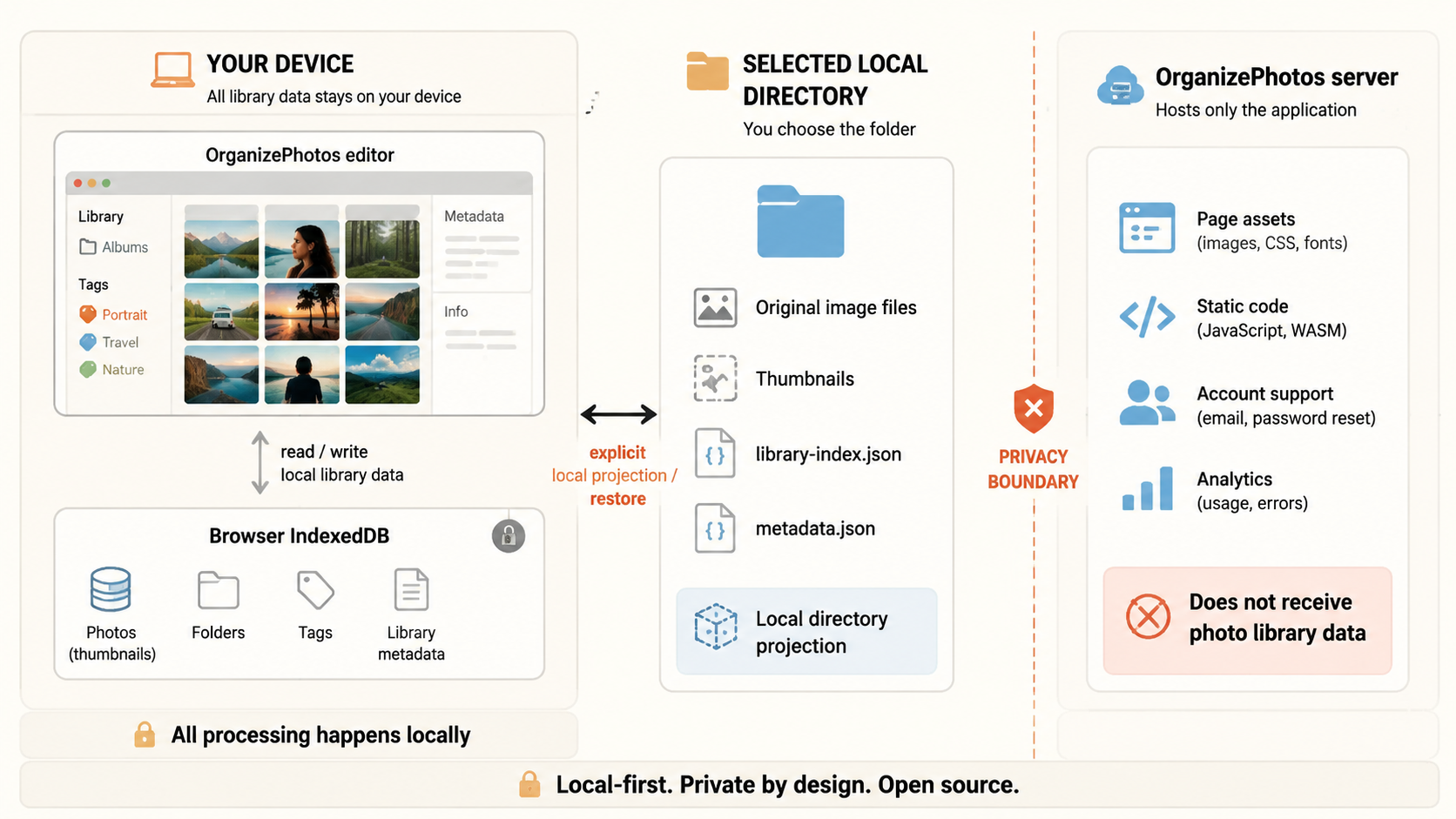
After you import photos into OrganizePhotos, they remain on your device. OrganizePhotos does not upload your photos to its servers or synchronize your library to the cloud.
Here, your library includes the photo files, thumbnails, folders, tags, sort order, and library index. The core organizing workflow does not require any of this data to leave your device. The editor source code and data architecture are public as well, so you can inspect this boundary in the organizephotos repository.
This does not mean that the entire website is permanently offline. The site may request its pages and static assets, while account, support, and analytics modules may make their own network requests. Those requests are separate from your photo library data.
Where your photos are stored
OrganizePhotos provides two local library modes. The editor uses IndexedDB by default and can also project a library into a local directory that you explicitly select.
The local library on your device
If you import photos directly into OrganizePhotos, the images and organization state are stored in the local library on your current device. This library uses the browser's local storage capabilities. Opening a web page does not automatically send it to OrganizePhotos servers.
You can continue previewing, searching, filtering, tagging, changing folders, and organizing photos in OrganizePhotos. These operations read from local data on your device.
A local folder you select
If you choose a local folder as your library, the original photos, thumbnails, index, and metadata file for each image are written to that directory. The working state is still managed by the browser's local database. This mode suits people who want to manage their own files, sync a directory with a cloud drive themselves, or keep ordinary files available to other tools.
In either mode, you control where the library is stored instead of handing it to an OrganizePhotos cloud account.
How OrganizePhotos organizes photos
After import, OrganizePhotos handles photo previews and library operations locally, including these common tasks.
- Find photos by file name, folder, or tag.
- Create folders, subfolders, and tags.
- Switch between grid, list, masonry, and adaptive layouts.
- Calculate photo colors for later color-based filtering.
- Organize photos in batches, move them to the trash, restore them, and export them.
These tasks do not require sending photos to a server or creating an account. Deletion first moves items to the trash, so you decide whether to restore or permanently delete them. OrganizePhotos does not automatically empty your original files.
The editor is open source
The OrganizePhotos editor source code is public at github.com/meetqy/organizephotos. It is also available as the organizephotos npm package and as shadcn source. The repository includes the implementations for local storage, directory projection, import, export, deletion, and recovery. The editor has no remote-storage adapter, server synchronization queue, or public-link service.
Open source lets you inspect the implementation and run the editor in your own React project. It does not automatically prove that every line of code served by the live website is identical to the repository, so it is still worth combining source inspection with the browser Network panel and an offline test instead of relying on a privacy promise alone.
What the OrganizePhotos server can see
To avoid confusing “photos are not uploaded” with “the website never makes a network request,” it helps to separate the boundaries.
OrganizePhotos servers may handle website pages, static assets, and necessary product requests. If you choose to use login, avatars, billing, support, or another account feature, those supporting modules process the information you submit for that feature.
The photo library in the editor does not send the following data to OrganizePhotos servers.
- Original photo files.
- Photo thumbnails and preview data.
- Folder names, tags, and sort order.
- The library index and the organization records you create.
Analytics or support tools may know that a page was visited or receive basic device and usage information, but they do not need and should not receive photo content. If a future feature requires uploading files, it should clearly explain what will be uploaded, why it is needed, and how it will be processed rather than doing so silently during organization.
What open source changes about web code
Web application code can change as a site is updated. The editor is now open source, so you can inspect its local processing and persistence code and install the public npm package or shadcn source. This improves auditability, but the live deployment may still use a different version, so open source is not an absolute guarantee about every runtime behavior.
What matters is whether the current library data flow is clear. After photos enter OrganizePhotos, core organizing operations run locally and there is no upload workflow for library content. You can inspect requests and temporarily disconnect the network after the editor has loaded, then continue testing the library that is already open.
How you can verify it yourself
You do not have to take our word for it. Try the following with a small set of test photos.
- Review the organizephotos repository, focusing on local storage, directory projection, and import code.
- Open OrganizePhotos and start recording requests in the browser Developer Tools Network panel.
- Import a few non-sensitive test photos, inspect the request list and details, and confirm that no photo files are sent to OrganizePhotos servers.
- Disconnect the network after import, continue previewing, searching, tagging, and switching folders, then reconnect and check that the library state remains available on your device.
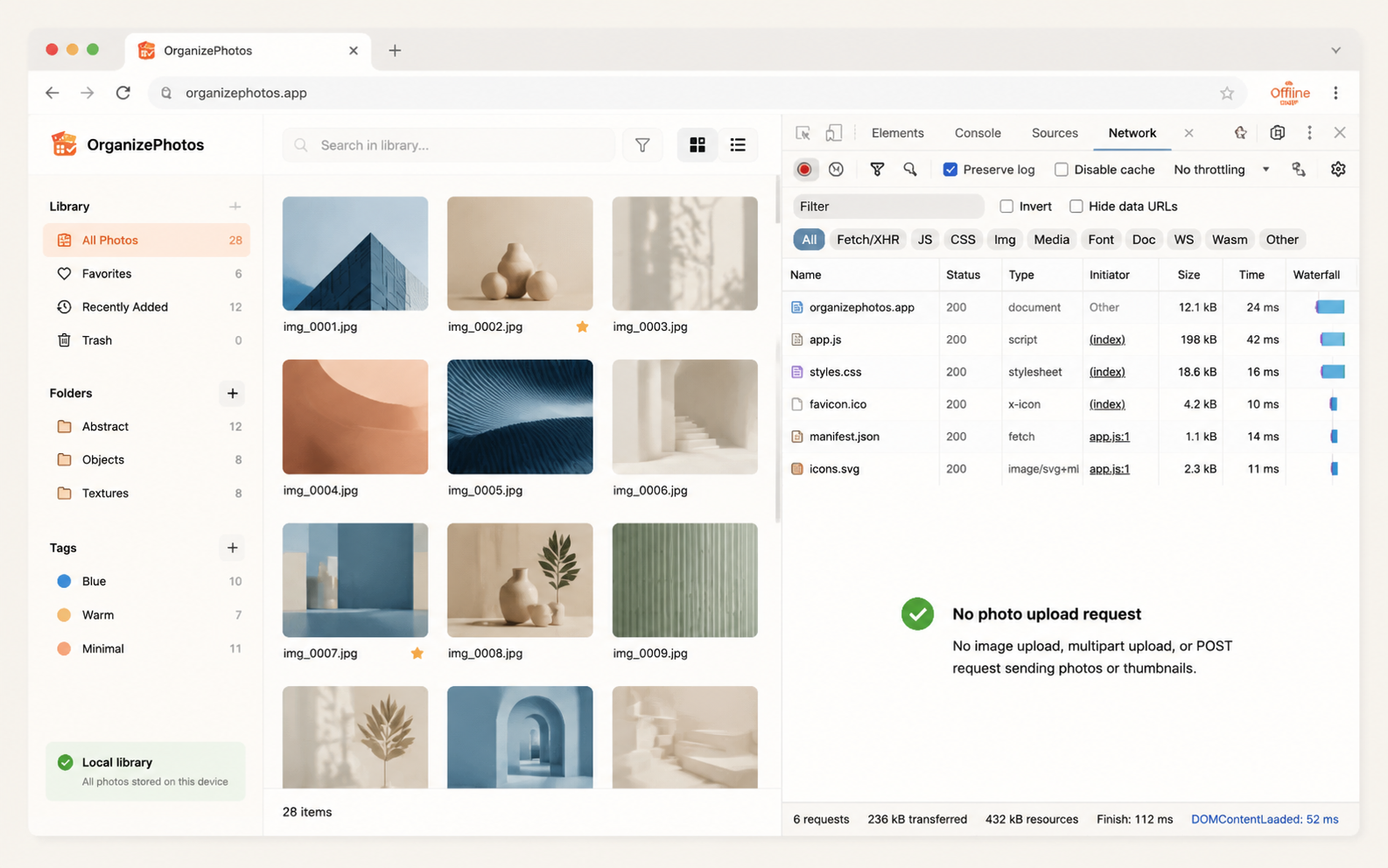
This test cannot replace protecting your device, but it can help you confirm that the core OrganizePhotos workflow does not depend on uploading photos.
Local processing still has limits
Local storage reduces the risk of handing photos to a third-party server, but it does not protect against every risk. Keep these limits in mind.
- Malicious browser extensions or malware on your device may read local content.
- The more access you grant to a selected folder, the more files OrganizePhotos can access there.
- Local libraries can be affected by device cleanup, browser settings, or storage limits.
- A local library is not a backup, so important photos still need your own backup and synchronization plan.
The takeaway
OrganizePhotos is an open-source, local-first photo organizer. You can import photos without handing them to OrganizePhotos cloud servers. Images, thumbnails, and organization data stay on your device or in a local folder you choose, and you can inspect, install, organize, export, and preserve them on your own terms.
If you are still unsure, start with a few test photos, inspect the requests, and complete one organizing session offline. For a local tool, being observable, verifiable, and portable matters more than asking you to simply trust it.