

OrganizePhotos Adds a Timeline View for Finding Photos by Date
The timeline view groups photos by capture date and supports EXIF dates, file dates, and unknown dates.
OrganizePhotos' timeline view groups photos by day to solve a common search problem, you remember when a photo was taken but not its file name or folder. During import, OrganizePhotos uses the EXIF capture date first, falls back to the file modification date when no usable EXIF date is available, and places images without a usable date in an Unknown date group. The timeline changes how you browse the library, not where your photos are stored.
The problem it solves
Searching by file name, tag, or folder works well when a library is already organized. It is less useful when you remember a trip, event, or project phase but only know roughly when the photos were taken.
The timeline puts photos from the same date together, making a day in your library a direct way to start a search. It does not create folders or change the existing file structure.
How the timeline groups photos
The timeline groups photos by capture date. Photos from the same day appear under one date heading with an image grid, and you can scroll to continue through other dates.
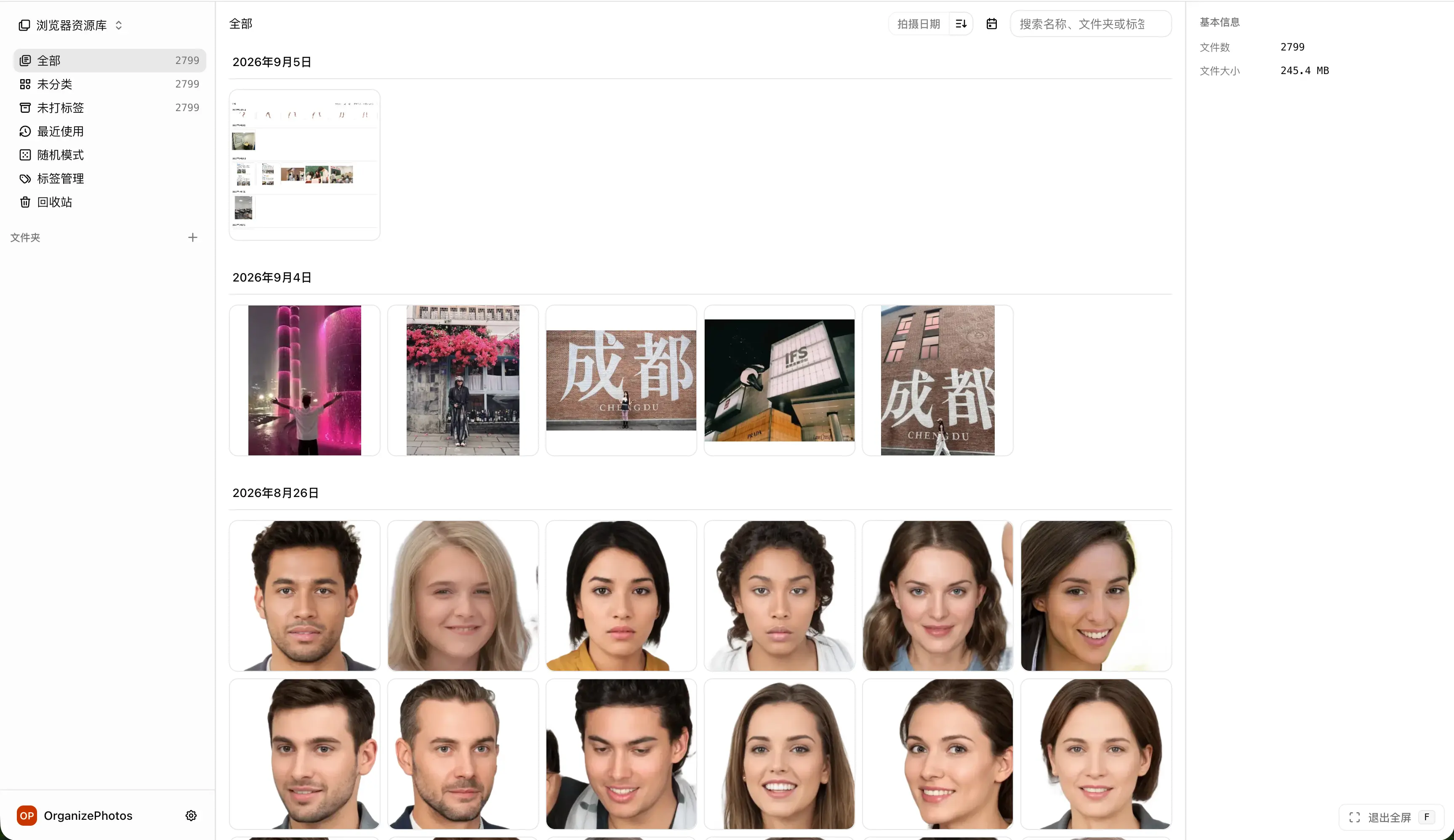
Dates are resolved in this order:
- Use the EXIF capture date when it is available.
- Use the file modification date when no usable EXIF date is available.
- Put the image in the Unknown date group when no usable date is available.
The image details panel shows the capture date and its source, so you can tell whether the date came from EXIF or the file.
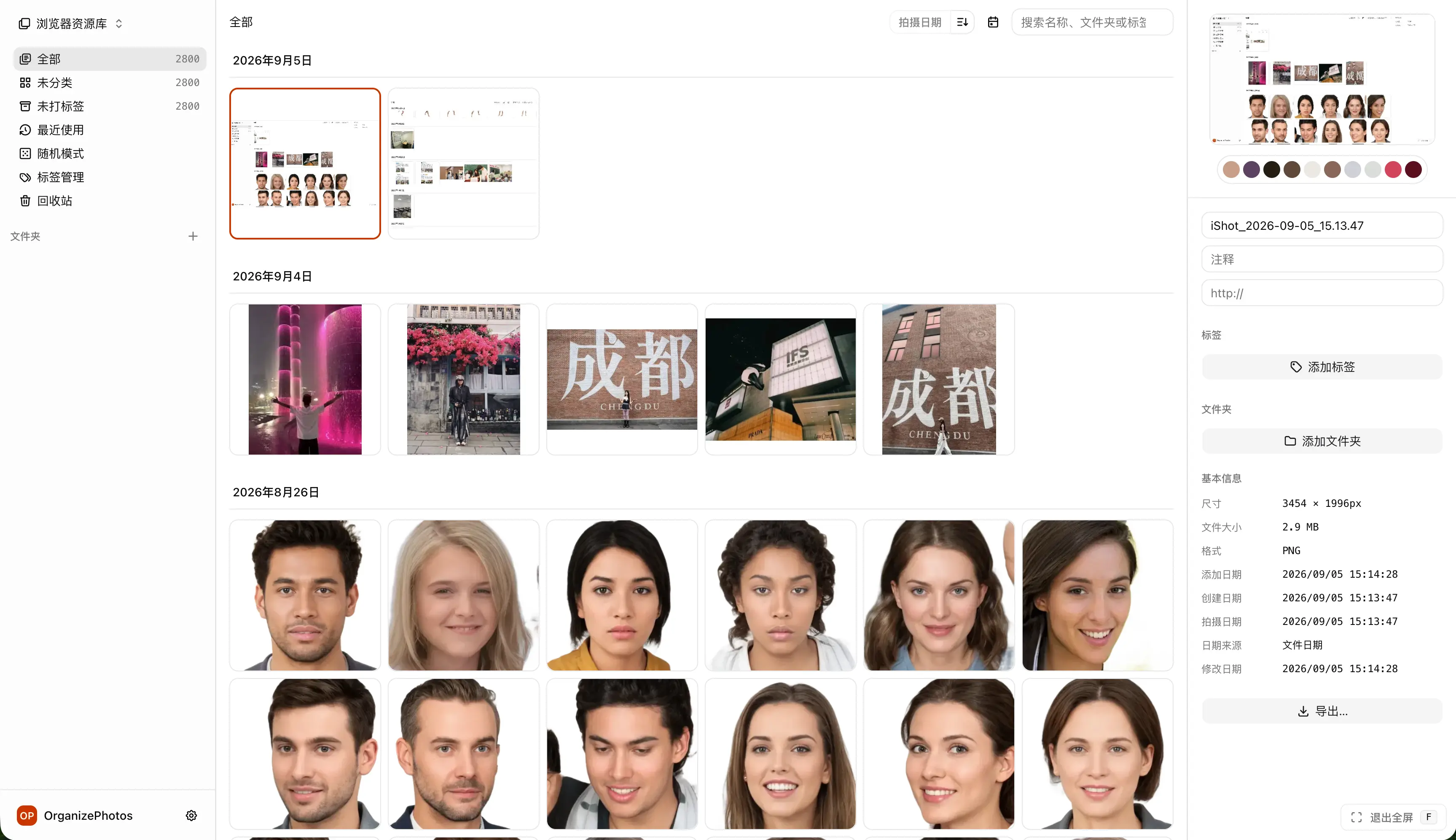
How to use the timeline view
- Open OrganizePhotos, import photos, or choose a local directory.
- Open the layout menu at the top of the library.
- Select Timeline.
- Browse by date, then click an image to preview it or open its details.
- When you need a smaller result set, filter by search, folder, or tag before switching to the timeline.
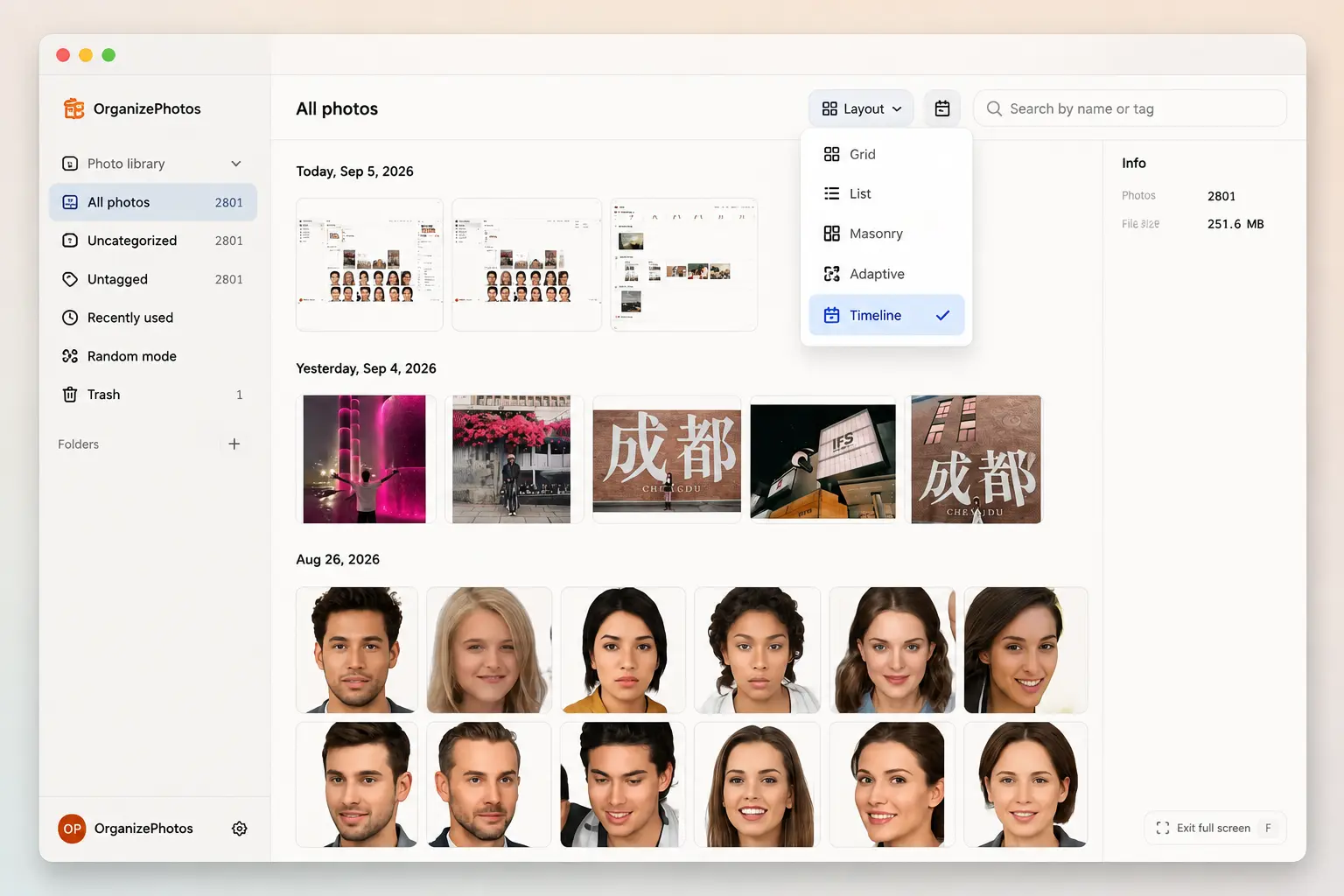
When the timeline is useful
- Browse travel photos by day.
- Find family photos by birthdays, holidays, graduations, or moving dates.
- Review project photos, screenshots, and records by project phase.
- Start organizing a large backlog by one year or date range.
The timeline works with search, folders, and tags. Filter the library first, then browse the results by date to reduce the number of images you need to review.
The timeline does not change photo storage
The timeline is a library layout. It does not move, rename, or delete original photos, and switching layouts does not upload photos.
OrganizePhotos remains local-first. Browser libraries keep images and organization state in the current browser. Directory mode keeps original files and the library index in the local directory you choose, while the browser keeps directory permissions and workspace state. The local-first claim applies to the photo library, not to every network request made by the site.
Frequently asked questions
Does the timeline create new folders by date
No. It changes the library display only and does not create folders or alter the existing file structure.
Can photos without EXIF capture dates appear in the timeline
Yes. OrganizePhotos uses the file modification date when available. If no usable date exists, the photo appears in the Unknown date group.
Can I view the timeline for one folder or tag
Yes. Select a folder, tag, or search result first, then switch to the timeline. The timeline groups the filtered results by date.
Does the timeline upload photos to the cloud
No. The timeline does not add an upload action, and the photo library keeps its local-first boundary.
Open organizephotos.app, import your photos, and switch to Timeline to find them by date.